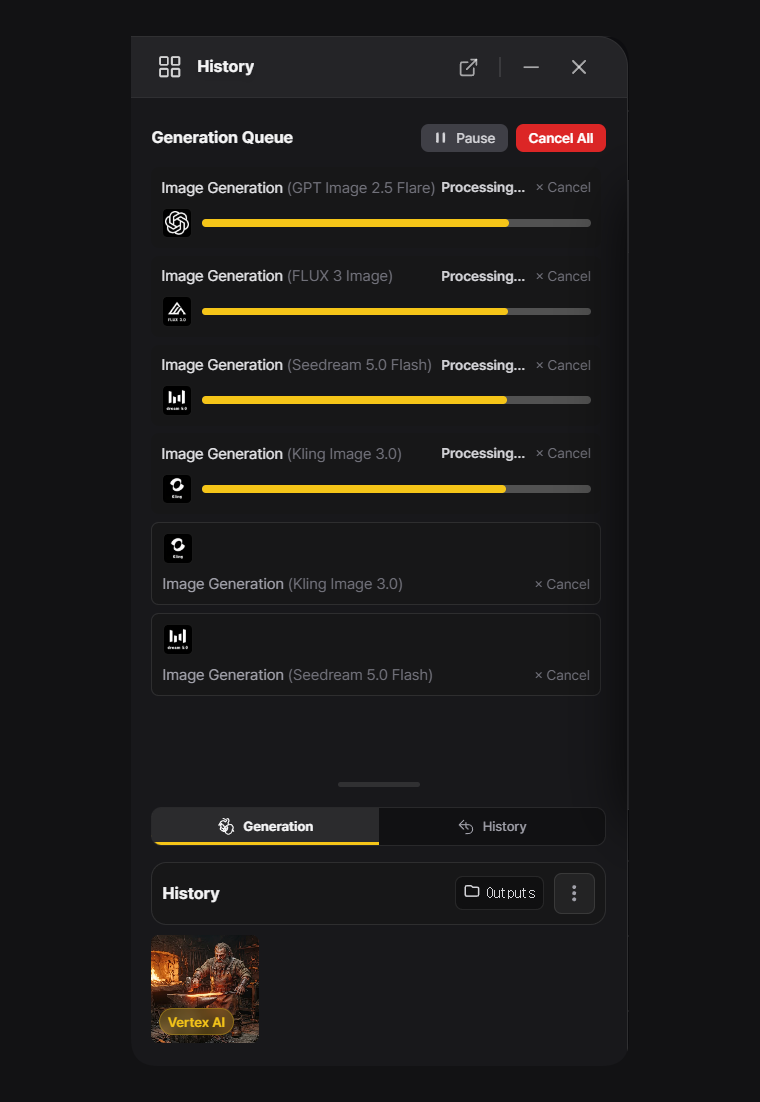
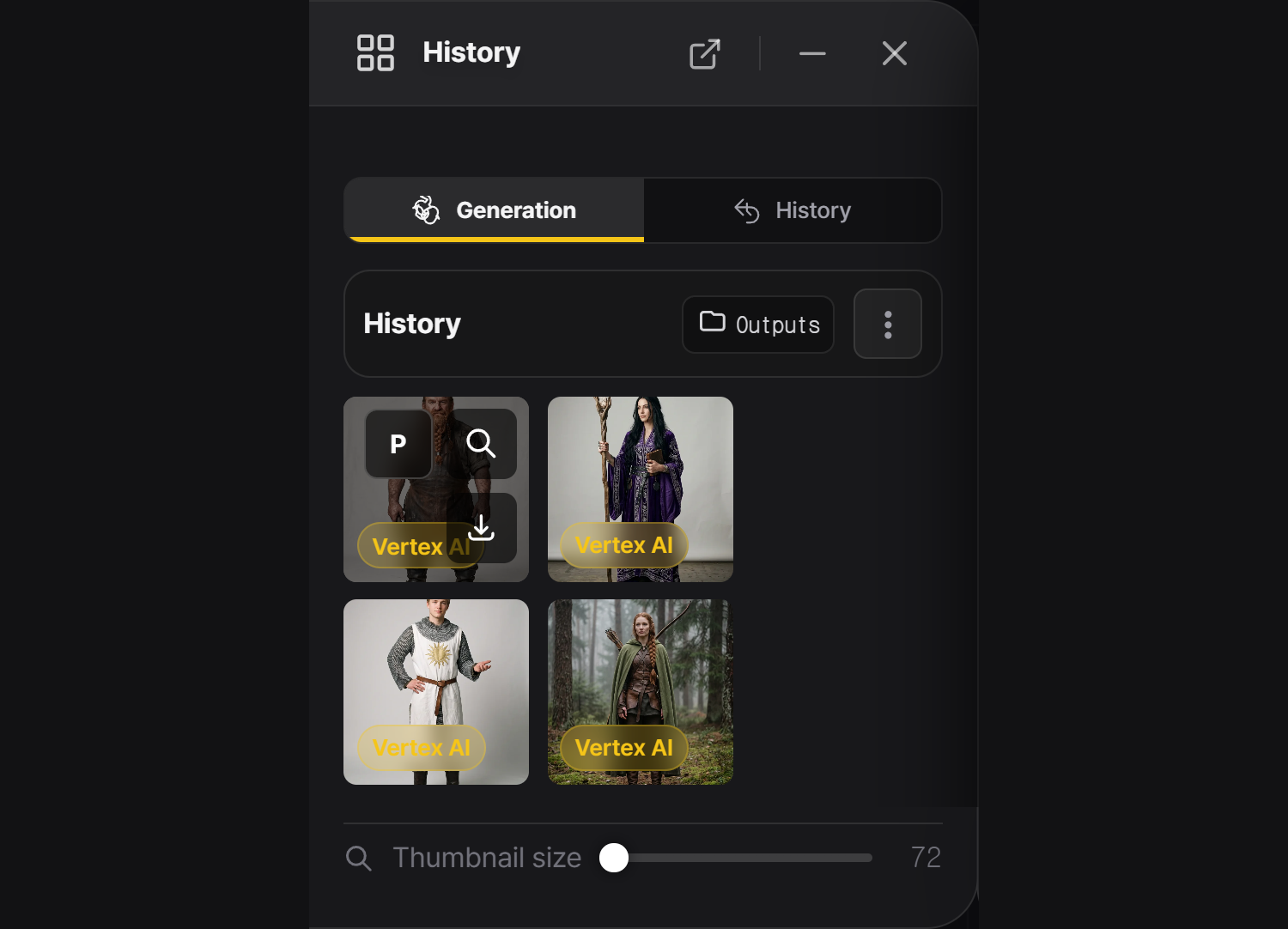
Every generation lands here with the exact inputs that made it. You never wait for one image before starting the next: each AI company has its own lane, so models from different companies generate at the same time while the rest wait their turn.
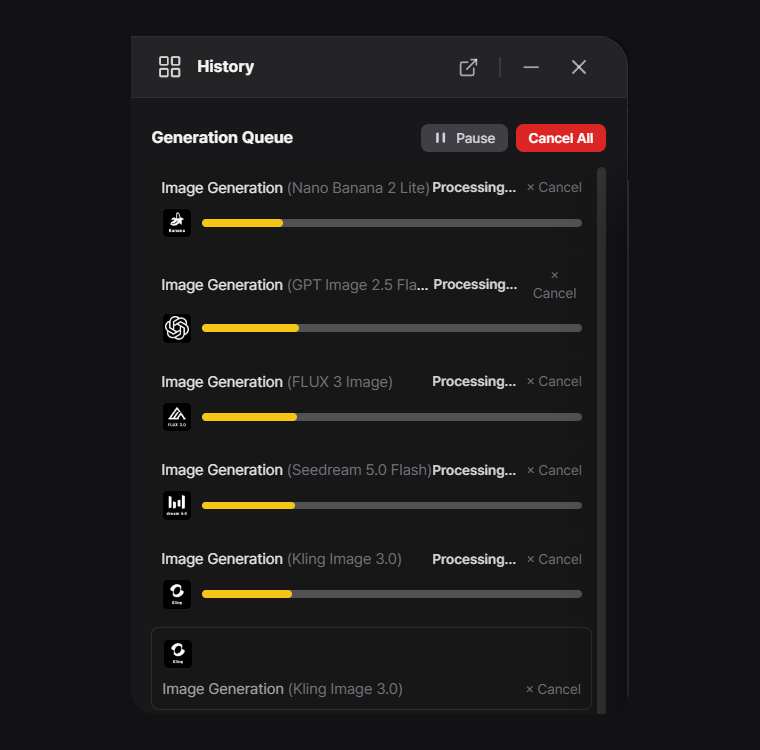
History panel — four companies generating at once, two tasks waiting — hover or tap a number
Generate in parallel, never wait
Five companies generating at the same time: Google, OpenAI, Black Forest Labs, ByteDance and Kling, with a sixth task waiting
One lane per company. Google, OpenAI, Black Forest Labs, ByteDance and Kling each run one task at a time, so up to five tasks generate at once. A task starts as soon as its company's lane is free, and a busy company never holds up the others.
Keep adding work. Press Run or Add to Queue while results are still coming in; new tasks join the end of the queue.
Compare models side by side. Send the same idea to several companies at once and pick the best result, or keep drafting on a fast model while a final runs elsewhere.
Feed results forward. As soon as a result arrives, use it as a role image for the next task while the rest of the queue keeps going. A task always uses the images it was given when you queued it.
Rate limits stay contained. If a company answers with a rate-limit error, only that company's lane pauses and its tasks stay in the queue. Turn on Auto Resume on Rate Limit in Settings to retry after 60 seconds.
Drag results anywhere
Results are ordinary files the moment they arrive, so your work carries straight on in other tools:
To the canvas — drag a thumbnail onto the board; it is placed with its generation settings attached.
Out of MergeRef — hover a thumbnail, then drag it into File Explorer, onto the desktop, or straight into Photoshop or any app that accepts files. Images, videos and memos (as .docx) all work, also from a popped-out History window.
Download — the button on each thumbnail, Download selected items in the … menu, or Auto Download History to save every result to Outputs as it arrives.
Panel controls
History panel controls — hover or tap a number
What each entry records
The result image or video.
The prompt and negative prompt.
Model, engine, resolution and tool options.
The role images that were sent.
Time of generation.
What you can do with an entry
Action
Result
Place on canvas
Puts the result back on the board, even if you deleted it.
Reuse settings
Loads the prompt, model, options and roles into the prompt panel.
Compare
Opens a before/after view against the original.
Delete
Removes the entry from history.
Pop it out
Drag the panel header to tear the history panel into its own window and keep it on a second monitor. See Free panel layout.
Tip
To find out why one result worked and another did not, reuse the settings of the good one and change a single input.