
Infinite canvas
The canvas is one endless reference board. Collect hundreds or thousands of images the way you already build mood boards, let AI sort them into groups of similar images, then generate, combine and refine right on the same board, all the way to the final artwork.
Collect at any scale
Build boards of hundreds or thousands of images and move through them smoothly. Images come in the way you already work, with no import dialog or download folder in between.
- Drag from the web. Pull images straight from Pinterest or any site in your browser onto the board.
- Drag to and from Photoshop. Drag a canvas image into Photoshop to paint over it, then drag the result back. It works in both directions.
- Paste and drop files. Paste from the clipboard, or drop image and video files from Explorer or Finder.
Let AI organize the board
A board of a thousand images is only useful if you can find things in it. MergeRef uses AI to sort the board for you, so similar images end up next to each other without manual dragging.
Groups work like folders on the board: drop an image onto a group to add it, and use auto arrange to line everything up again. The AI chat can also read the canvas and act on it when you turn on Agent mode.
Generate where you collect
There is no separate generation screen. Select images on the board, give each one a role, write a prompt and generate. The result lands next to the image it came from, so the board shows how each design developed.
See Selection bar & image roles and Prompt panel.
Combine into new references
Every result is a regular canvas image, so it can become the input for the next generation. Mix and match until you have the reference set you need.
- Reuse results. Use the best result as the new original, or as a costume, pose or style reference.
- Extract structure. Pull a pose or an outfit out of any image, or remove its background; the result appears as its own card.
- Cut motion references. Trim a 2–15 second range from any video card and keep it as a clip.
See AI Edit tools and Model overview.
From board to final artwork
When a direction is settled, run the final pass with the model that suits it, at full resolution. The history panel keeps every generation with its prompt and settings, so you can always go back. See Model overview and History panel.
Moving around
| Action | Mouse / trackpad | Keyboard |
|---|---|---|
| Pan | Drag empty canvas, middle-mouse drag, or two-finger scroll | Hold Space and drag |
| Zoom | Mouse wheel or pinch | Ctrl + / Ctrl − |
| Zoom to fit everything | — | Shift 1 |
| Zoom to selection | — | Shift 2 |
Zoom is centered on the cursor, so point at what you want to inspect before zooming in.
The toolbar can bind to the original image and follow it around the board. See Shared toolbar.
How the canvas renders
MergeRef draws the canvas on the graphics card (WebGL) from a background thread of its own, so panning and zooming do not wait on the rest of the app. Images are decoded on another background thread.
Only what is on screen. A spatial index finds the images in view without checking every image on the board. Images off screen are not drawn.
The right size for each zoom. Each image has several sizes: 128 px, 256 px, 1024 px, a working copy up to 4096 px, and the original. MergeRef loads the smallest one that still looks sharp at the current zoom. Past about 150%, it loads the original from the original store. At far zoom, thumbnails are packed 256 to a shared sheet, so an overview of a thousand images costs the graphics card only a few sheets.
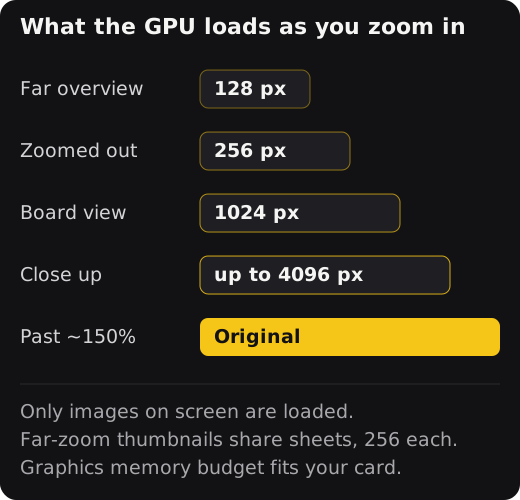
A memory budget sized to your machine. Graphics memory for images has a budget set by your graphics card, from 384 MB on small cards to 1.5 GB on cards with more than 8 GB (up to 6 GB on large workstations). When the budget fills, images that are not on screen are released first.
A memory governor. MergeRef checks system memory and graphics memory every 20 seconds, and every 5 seconds while generating. When memory runs short, it pauses background work, releases off-screen images and turns off the panels’ glass effect. If it gets critical, it halves the image budget and moves inactive tabs’ images to disk. Everything returns to normal when memory frees up.
Storage and safety
MergeRef is built for boards with hundreds or thousands of images. This section explains how it keeps them safe and how a board moves to another computer.
Your originals are kept untouched. Every image you drop, paste or generate is copied, unchanged, into an original store on this computer. Each file is named by a fingerprint of its contents, so a duplicated image takes space only once. A file is written in full before it gets its final name, so a half-written copy never stays in the store.
The board works with lighter copies. For speed, the canvas works with copies up to 4096 px, plus small previews of each image. Only the size the screen needs is loaded, and only for images in view. Images you are not looking at are released from graphics memory.
Missing copies repair themselves. If a working copy is lost (cleared from memory or a temporary file deleted), MergeRef rebuilds it from the original store. An image does not stay blurry.
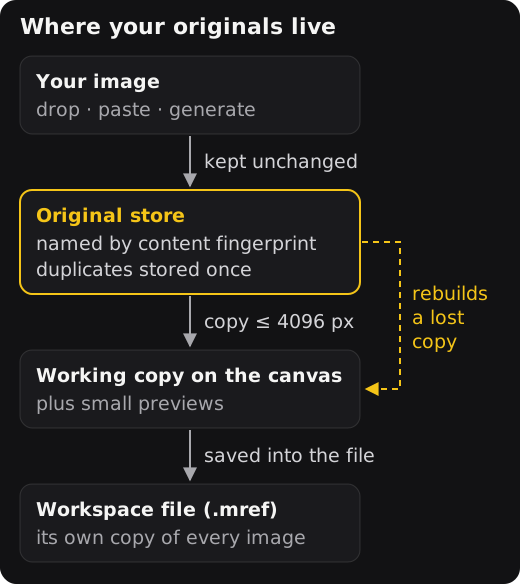
The save file holds every image. A workspace is one .mref file, and the pixels of every image are written into it. The file does not only point to the original store. Saving streams the board to disk in small pieces, so large boards save without running out of memory.
Saves cannot leave a broken file. Each save goes to a temporary file first. MergeRef checks that the file is complete, keeps the previous version as a .bak file, then swaps the new file in. If a workspace will not open, MergeRef tries the .bak file automatically.
Autosave and backups. Autosave runs at the interval you set, and only when something changed. A board you have not named yet is kept in a recovery slot that MergeRef offers when it next starts. You can also keep backup copies of your saved workspaces in a folder, including a OneDrive or Dropbox folder.
Crashes are contained. If the app window crashes, MergeRef reloads it. A second crash within ten minutes restarts the whole app, which also resets graphics. After a third, it asks what to do. When you start again, it asks before reopening the last board. Tabs you are not viewing release their images to disk.
Continue on another computer. Copy the .mref file to the other computer and open it in MergeRef. The original-store folder is not needed: the images are in the file. Opening it also fills the new computer’s original store.
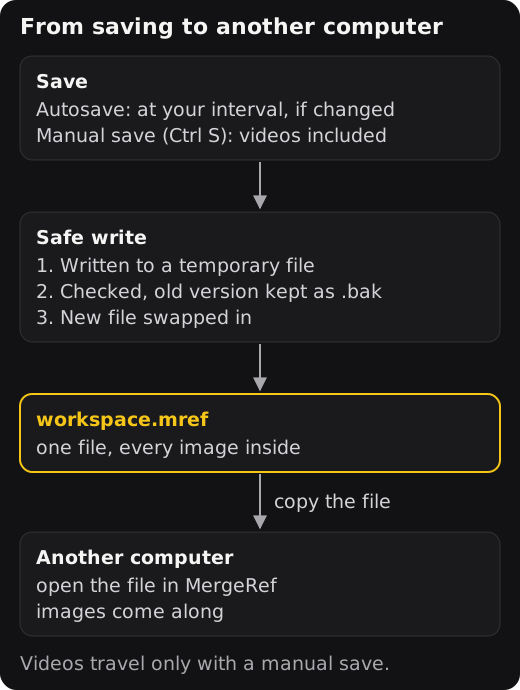
- Videos, and pictures or videos inside memos, are written into the file only by a manual save (Ctrl S). Autosave only refers to this computer’s store. Save manually before you move a workspace.
- Imported images larger than 4096 px travel at 4096 px. The full-size original stays in the first computer’s store. Generated images travel at full size.
- A workspace file can hold up to about 4 GB. Videos that do not fit are left out, and MergeRef tells you.
- API keys are not saved in the workspace. Connect your keys on the new computer.